

Step-by-Step Guide to Charging AirPods Pro and Viewing Real-Time Battery Status
por Tyrone Young en Dec 25, 2025

Knowing how to charge your AirPods Pro correctly and check their battery level can save you from sudden disconnects and dead earbuds.
The AirPods Pro charging case supports both Lightning cable charging and Qi wireless charging, making it easy to power up whether you’re at home or on the go.
In this guide, I’ll walk you through the correct ways to charge AirPods Pro, explain what the case indicator lights mean, and show you how to quickly check battery status on iPhone, iPad, and Mac.
If you want to keep your AirPods Pro ready at all times and avoid battery surprises, this step-by-step guide covers everything you need to know.

Charging Airpods Pro
The included power case of the Apple AirPods Pro is not to be ignored either as it also packs in some good features too. It can support fast charging and of course, wireless charging. You can access the full functionality of the Apple AirPods Pro by connecting it on iPhone or iPad devices that have an iOS version of 13.2. This is perhaps the latest mobile operating system released by Apple.

Right, with the features right out of the way, let’s take a look at this helpful guide on how to charge your Apple AirPods Pro and Check the AirPods Pro Battery state. Let’s get started
How to charge your Apple AirPods Pro
In order to charge your Apple AirPods Pro, there are two simple methods that are worth looking at. So, let’s start with the simplest and easiest method which is to charge using a lightning cable.
Every iPhone smartphone or the Apple AirPods Pro itself has an included lightning cable that you can plug into the case. This is a very straightforward method as you are familiar with charging your smartphones therefore it is the same. It is also by far the fastest way to charge your Apple AirPods and you have the option of either charging your case with or without the AirPods inside.
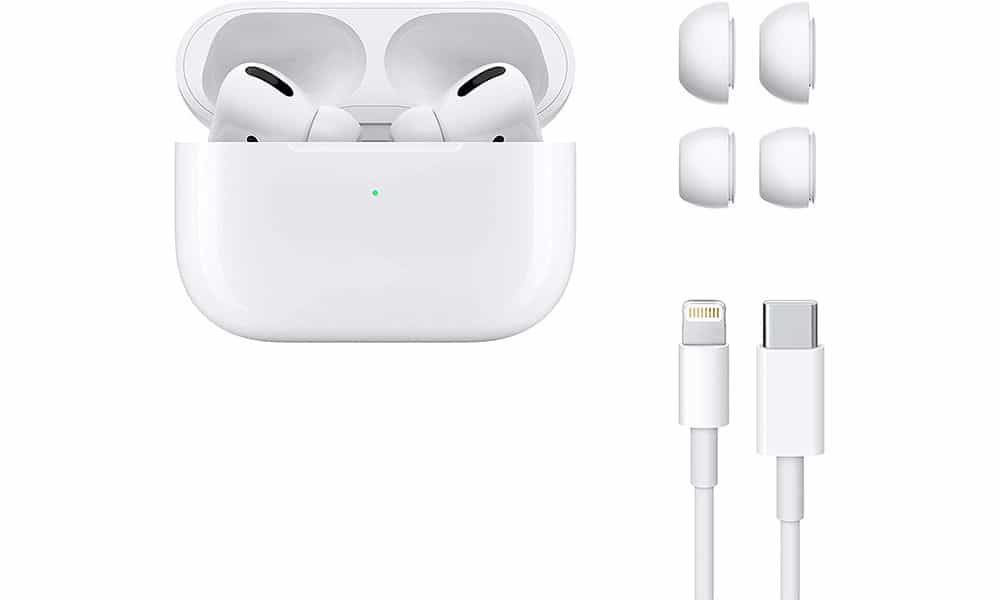
Now, the second method which is a new one that can be found only on the Apple AirPods Pro and that is to charge it via wireless charging. Using a Qi-certified charging mat (you need one of these which you can buy in many shops both offline and online), just simply place the case on top of it and it will proceed to charge on its own.
Status of Airpods Pro battery
To check the status of your Apple AirPods Pro, just tap on the case itself and a light will flash in either of these two colors. If the case flashed in amber color, this means that the case is still charging. On the other hand, if the case flashed in green color, this simply indicates that the case fully charged, and it is ready to use once again.
So, that’s the amazing two methods on how you can charge your Apple AirPods Pro. To summarize it, Charge your Apple AirPods Pro with either through the included lightning cable or through wireless charging. Now let’s move on how to check your Apple AirPods Pro’s battery state.
How to check your Apple AirPods Pro Battery State

Right, assuming you have your device connected to your iPhone or iPad via Bluetooth and you have an updated iOS 13.2 installed, this is how you check your Apple AirPods Pro’s battery state.
Open your Apple AirPods Pro charging case with the AirPods inside and place it near your iPad or iPhone. Standby for a few seconds and a pop-up window will appear right before your very eyes. Inside the pop-up window, you will see your Apple AirPods Pro’s battery status along with the charging case’s battery status too.
For people who use a Mac like a Mac Pro or a MacBook, this method is entirely similar with each other. After opening your Apple AirPods Pro’s cases with the AirPods inside, navigate inside your MacOS system and click the Bluetooth icon located on the menu bar.

From there, you navigate your pointer (also known as your mouse pointer) to that particular icon and a pop-up will appear. Like the ones found in the iPhone and iPad, the pop-up window the battery status of your Apple AirPods Pro and the battery status of the charging case which is great.
So, that’s about it for today! Once again, this is a helpful and simple guide on how to charge your Apple AirPods Pro and check the AirPods Pro battery state. If you managed to find this awesome article helpful in handling your true wireless earbuds, please let me know what are your experiences about it and if you have more tips and suggestions, don’t hesitate to share it as it is very much welcome here as well.
Frequently Asked Questions About Charging AirPods Pro
How long does it take to charge AirPods Pro?
AirPods Pro typically take about 1 hour to fully charge inside the case. The charging case itself takes roughly 1 to 2 hours depending on whether you use a Lightning cable or wireless charging.
Can I charge AirPods Pro without the earbuds inside the case?
Yes, the AirPods Pro charging case can be charged on its own without the earbuds inside. The case and earbuds charge independently.
Does AirPods Pro support wireless charging?
Yes, AirPods Pro support Qi-certified wireless charging. Simply place the charging case on a compatible wireless charging pad with the status light facing up.
What do the AirPods Pro case light colors mean?
An amber light means the AirPods Pro or case are still charging, while a green light indicates a full charge. No light usually means the battery is fully drained.
How can I check AirPods Pro battery on an iPhone or iPad?
Open the charging case with the AirPods inside and hold it near your iPhone or iPad. A pop-up will appear showing the battery levels for both the earbuds and the case.
How do I check AirPods Pro battery on a Mac?
Open the charging case near your Mac, then click the Bluetooth icon in the menu bar. Select AirPods Pro to view the battery status of the earbuds and the case.
Why are my AirPods Pro not charging?
Common reasons include debris inside the charging port, a faulty cable, misaligned earbuds in the case, or a completely drained battery. Cleaning the case and using a different charger often resolves the issue.